For teaching a course
One workspace for every course.
Build a workspace from the syllabus, readings and handouts, invite your students into it, and review how they use it. The course material stays on the hardware your school runs.
Runs with
- Ollama
- LM Studio
- LocalAI
- KoboldCPP
- Docker
- Kubernetes
- Helm
- OpenShift
What it gives you
Run the course, not the software.
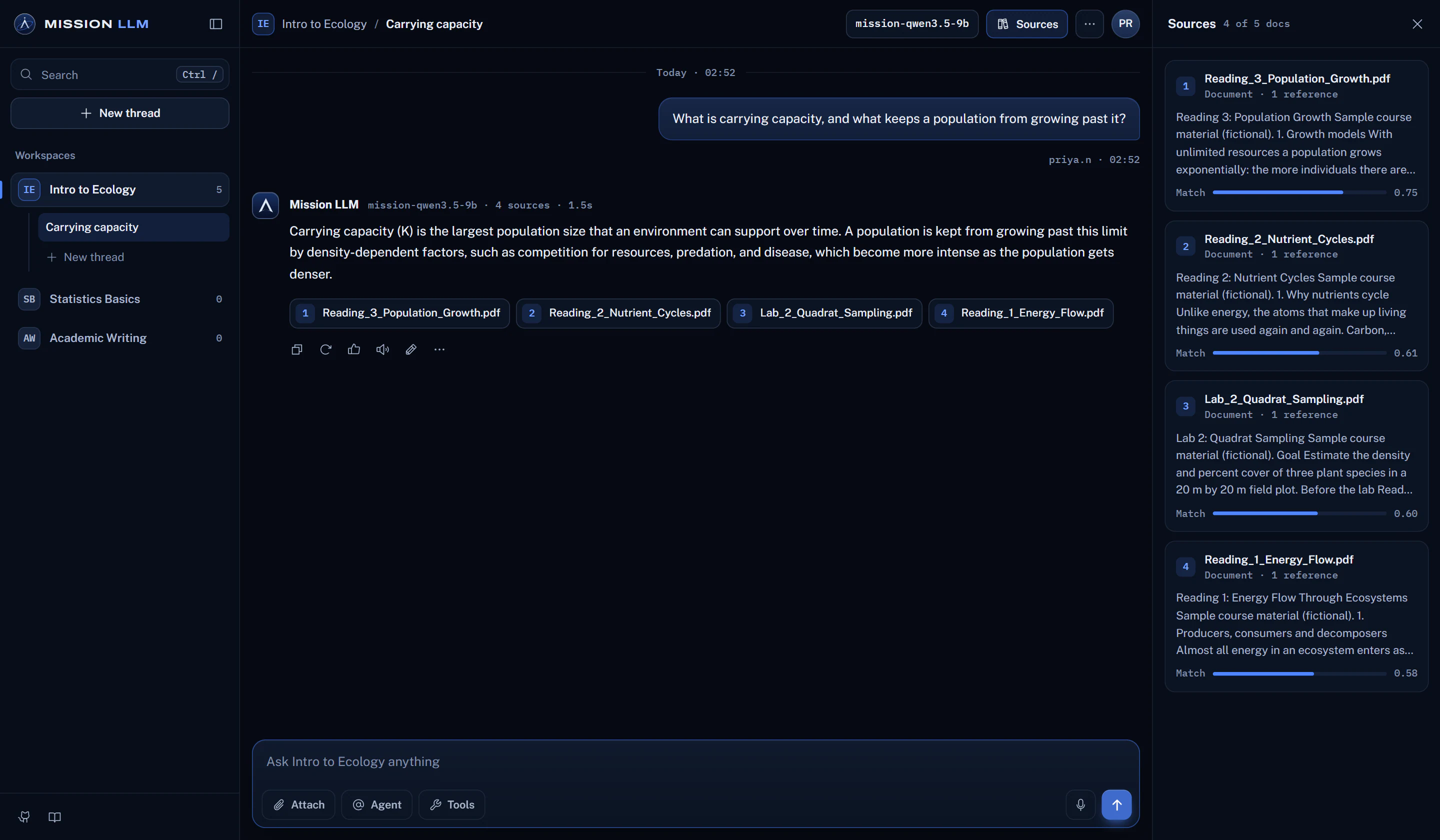
The syllabus, readings and handouts in one workspace, plus GitHub, GitLab or Gitea repositories, websites and YouTube transcripts.
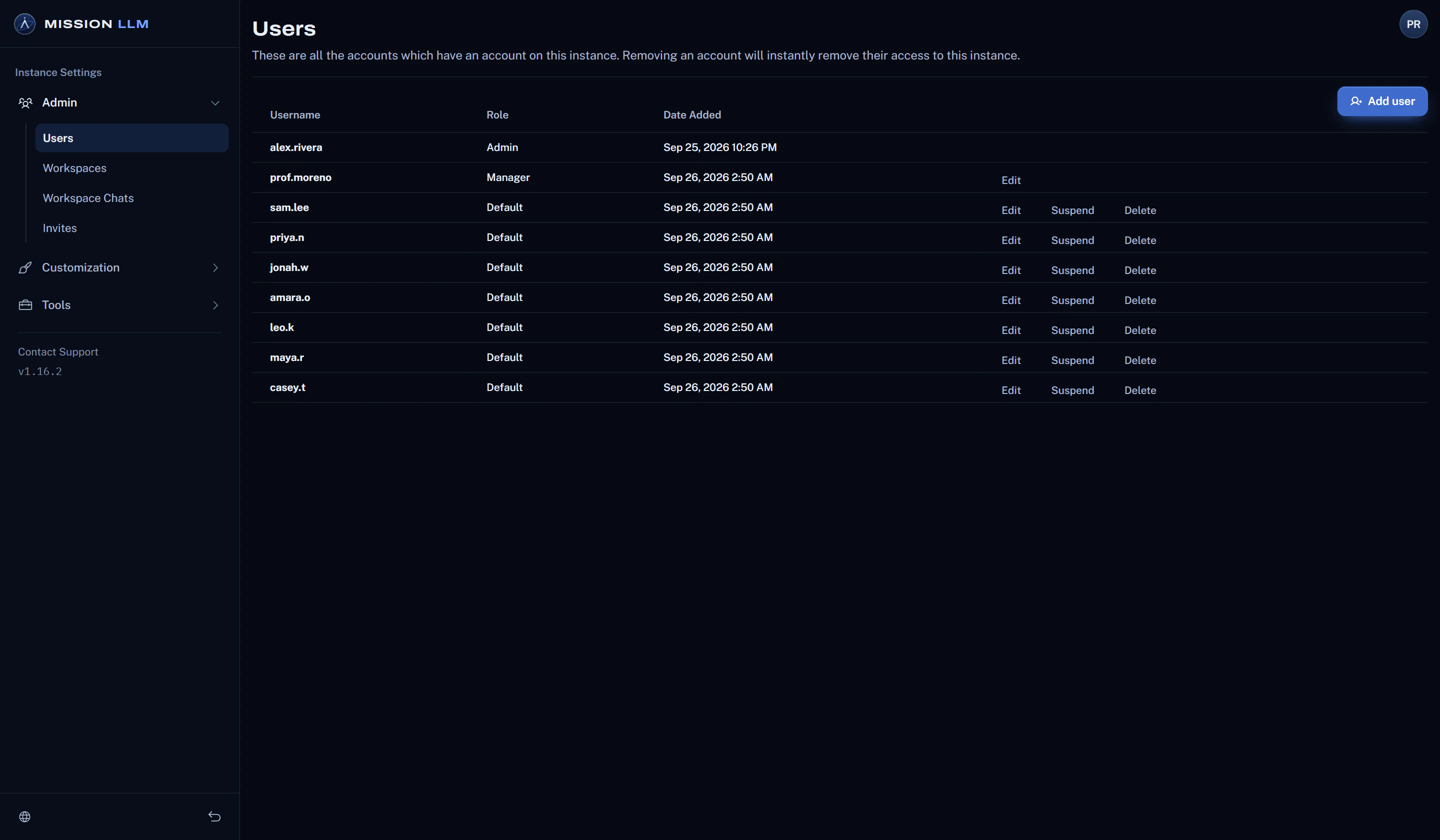
Invitations carry the course workspaces, so each student lands in the right course. Suspend an account at any time.
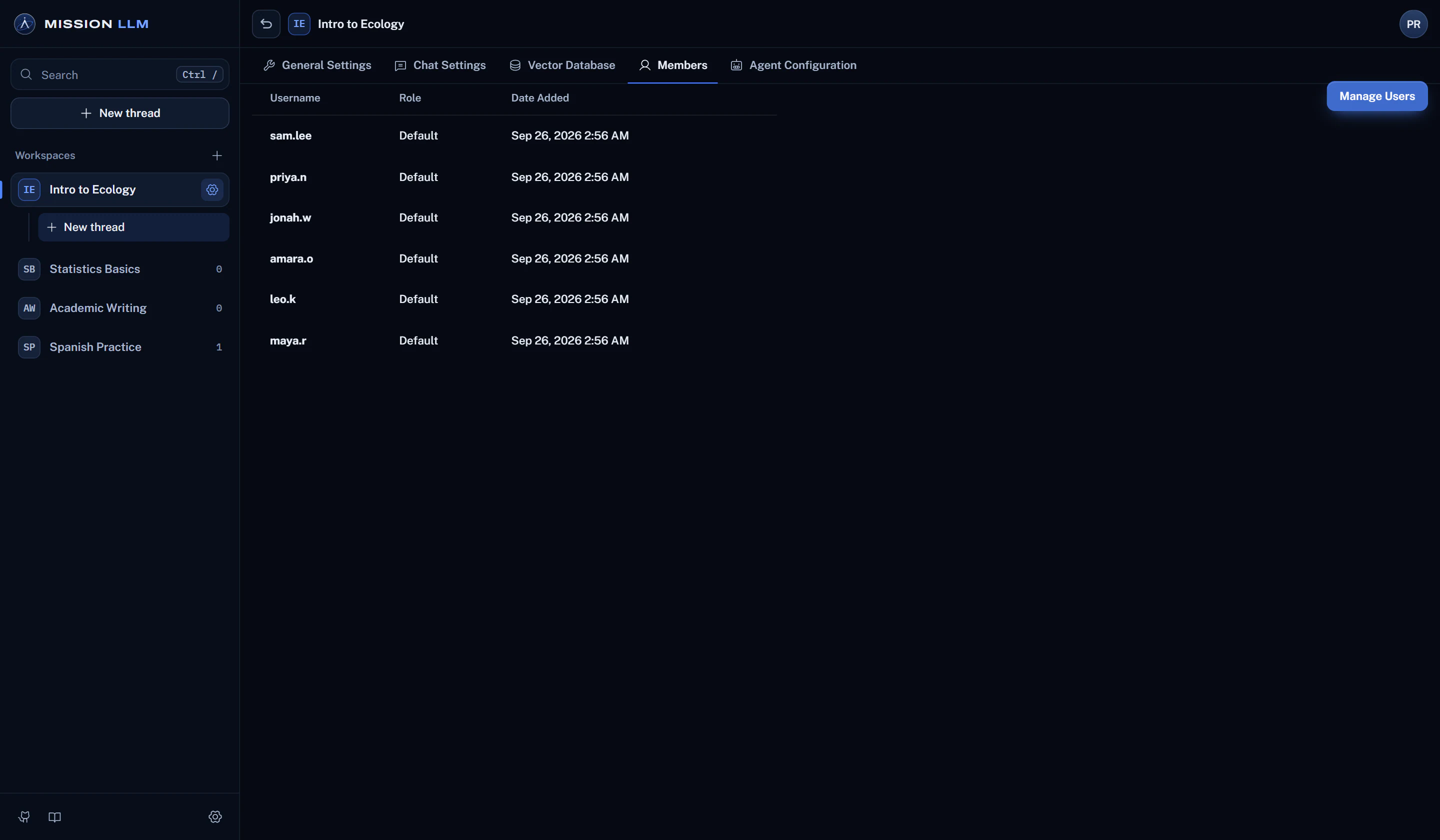
Each workspace lists its members. Students with the default role see only the workspaces they are added to.
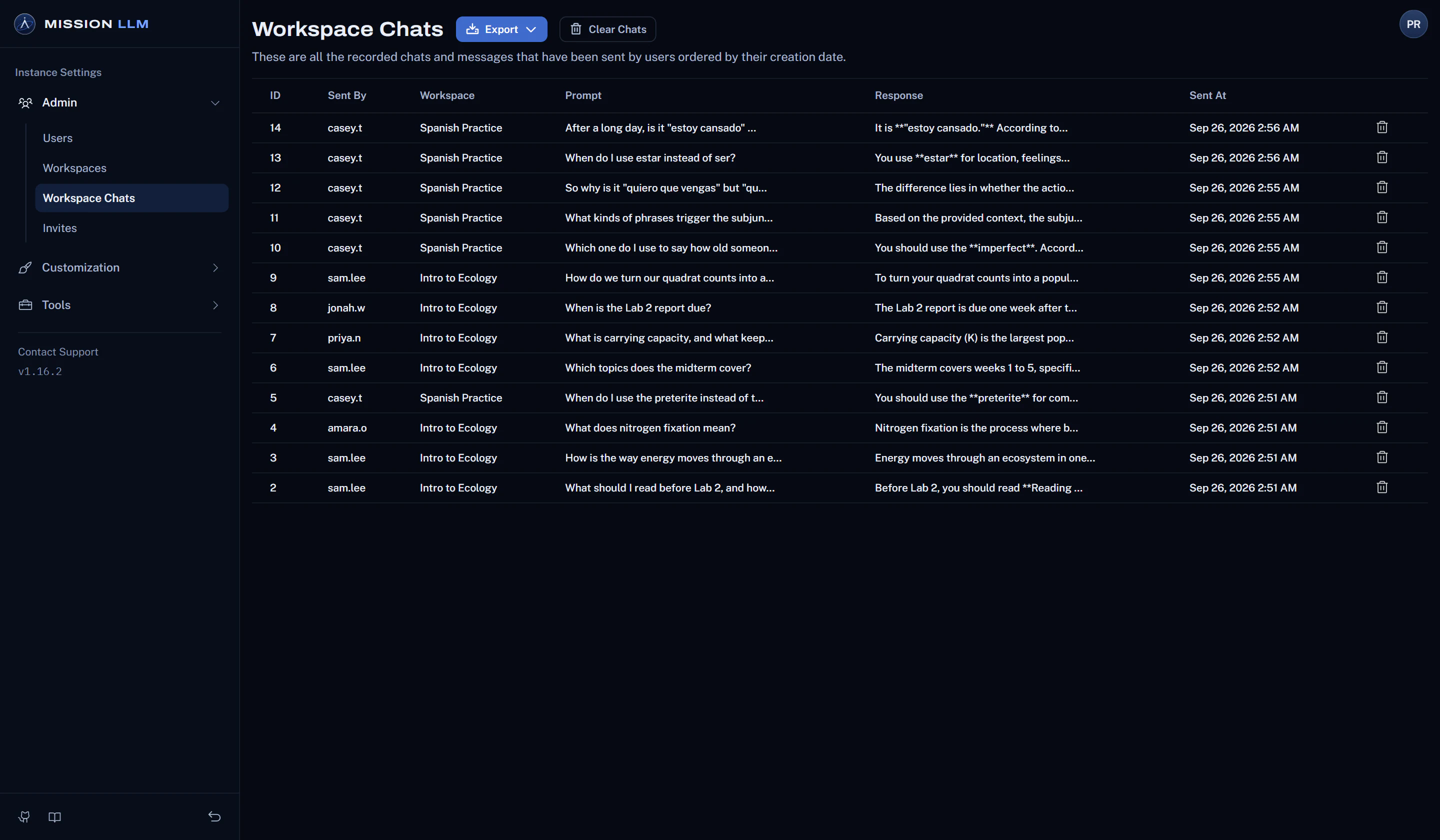
Learn more about accessRead the course's chats with who sent each one, and export them as CSV, JSON or JSONL.
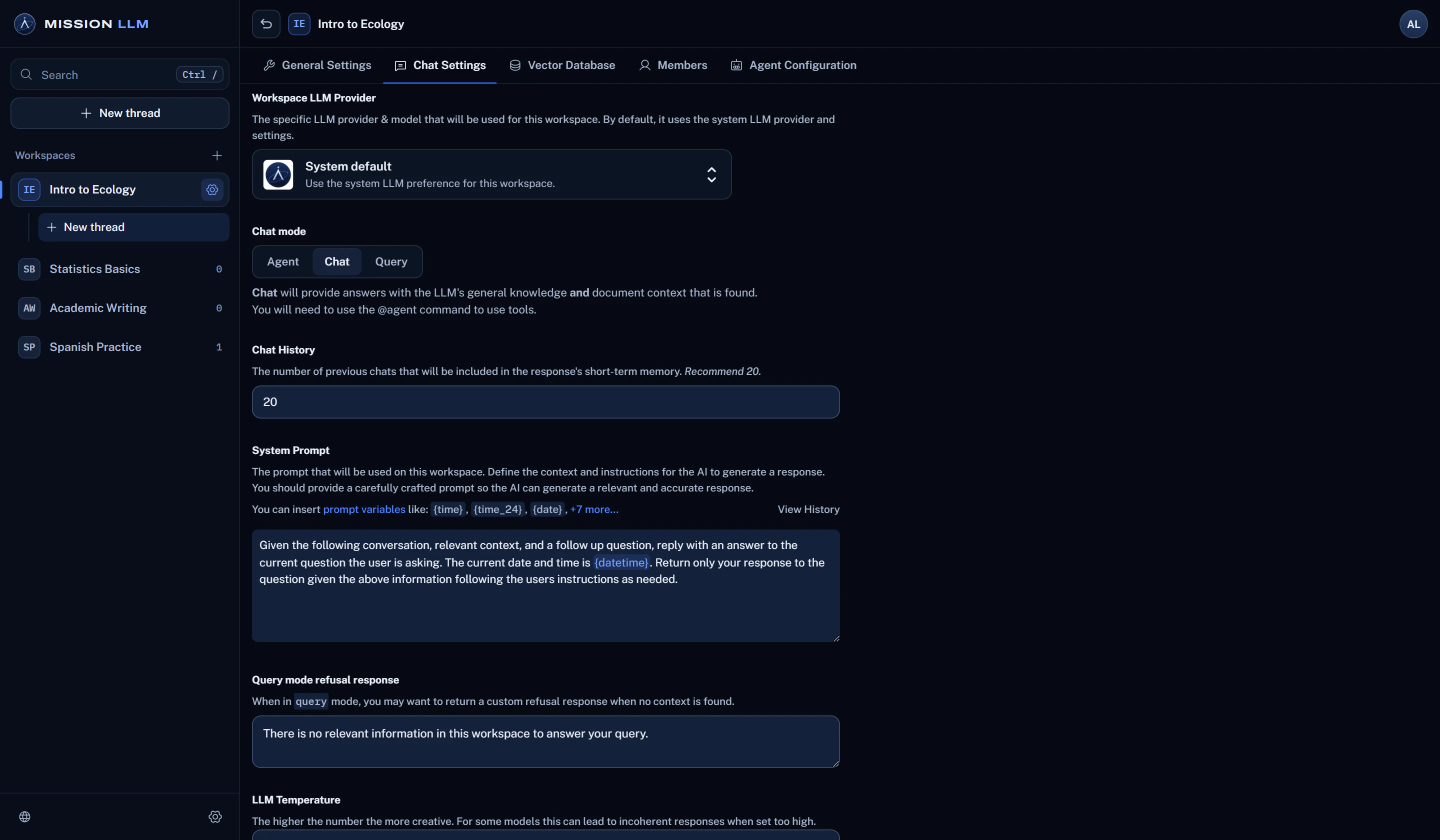
Learn more about oversightEach workspace has its own model, chat mode, system prompt and refusal reply, and its own similarity threshold and passage count.
How it works
Set up a course in three steps.
Create the workspace
Name it after the course and add the syllabus, readings and handouts, or connect a repository or a website.
Invite your students
Send invitations that carry the course workspace, so every student lands in the right course.
Review and adjust
Read how the class uses it, then tune the prompt, the mode and the documents.
Before you rely on it
Good to know.
Plain facts about what this use can and cannot do today.
- The manager role is server-wide: a manager can open every workspace, not only their own courses.
- Roles scoped to a single workspace are in development.
- An embedded chat widget does not ask visitors to sign in, so give it only public course material.
More ways to use it
Classrooms
A course assistant that answers from the course readings and lists its sources.
Students
Study help drawn from the assigned material, in a workspace of your own.
Training instructors
Teach faculty modern AI workflows, agentic coding included, on a local model.
Teams and labs
Policies, manuals and research, searchable with the sources listed.